One-tap mode switching
Switch between 5G SA, 5G NSA and 4G LTE from one screen. No digging through hidden menus.
Switcher 5G is a free, open-source Android app that moves your phone between 5G SA, 5G NSA and 4G LTE. It uses Shizuku, root, ADB or the hidden RadioInfo menu.
Preview of the three network modes
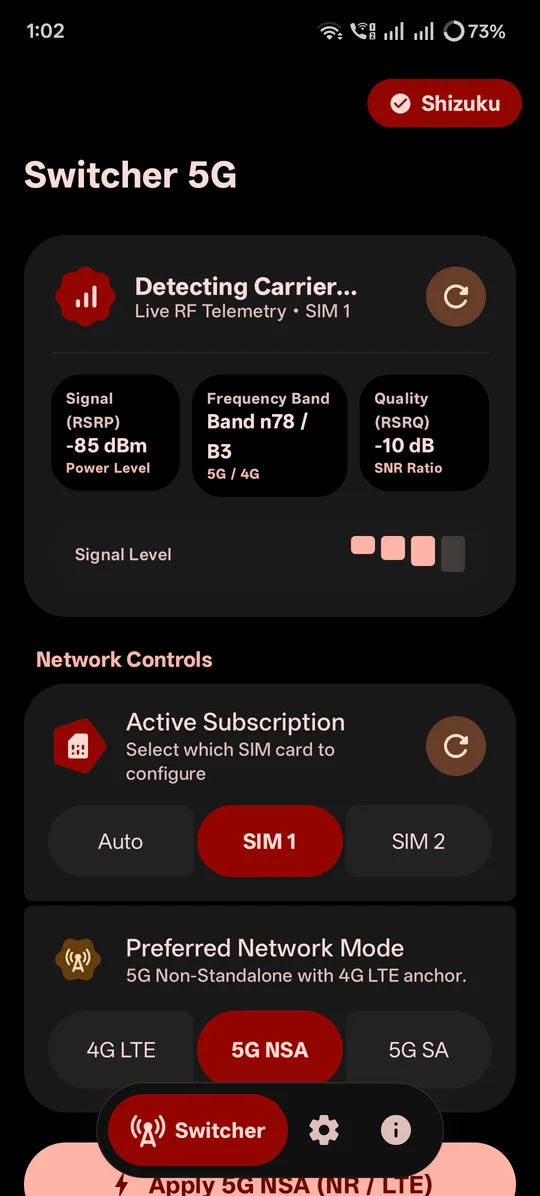
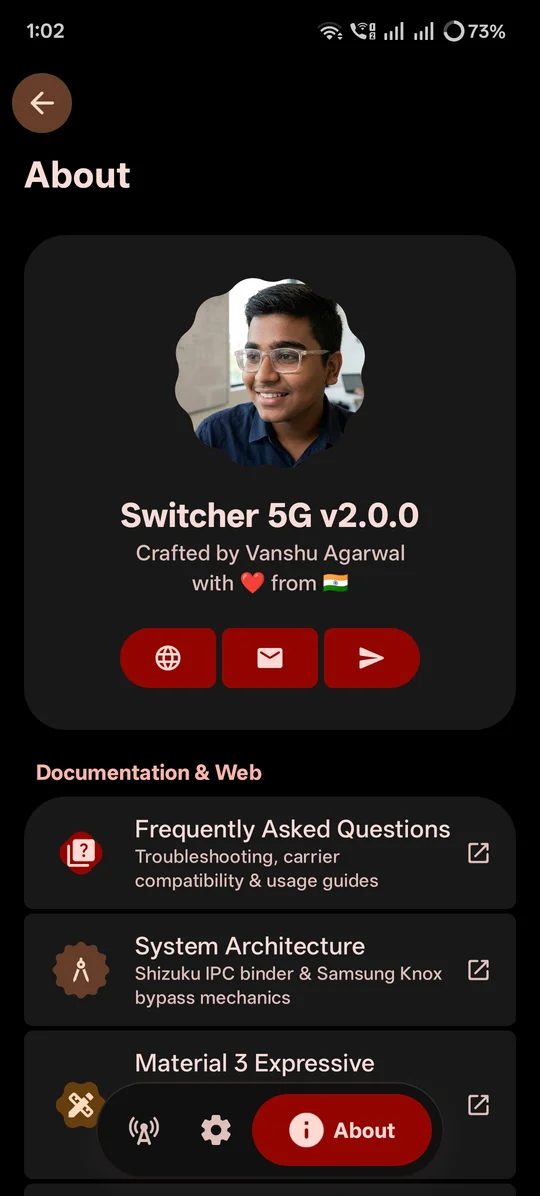
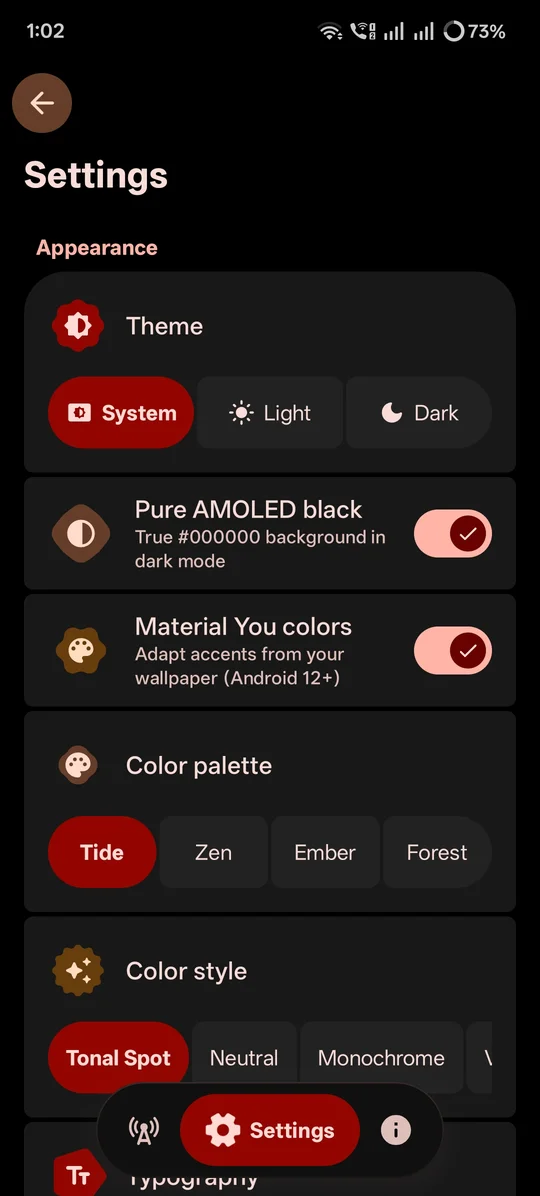
Built for people who want 5G SA when it works and a fast way back when it does not.
Switch between 5G SA, 5G NSA and 4G LTE from one screen. No digging through hidden menus.
Shizuku, root, direct ADB or the RadioInfo menu. Auto mode tries them in order, so it just works.
Change mode from the status bar or your home screen. Three tiles and a widget, no app launch needed.
Pick SIM 1 or SIM 2, or let the app find the SIM that carries your data.
Watch RSRP, RSRQ, band and signal level update while you switch. See what each mode does to your connection.
Swipe back to preview the previous screen, with rounded corners and a soft blur behind. Both can be turned off.
Follows your wallpaper on Android 12+. Or choose from curated palettes, AMOLED black and seven fonts.
Trigger a switch from Termux or ADB with a broadcast or a switcher5g:// link.
Most people are switching modes in under two minutes.
Download the APK from the download page and install it. Allow installs from your browser or file manager when Android asks.
Start Shizuku with Wireless debugging and grant permission, or approve the superuser prompt if your phone is rooted.
Choose 5G SA, 5G NSA or 4G LTE, then tap Apply. Add the tile or widget to switch without opening the app.
Switching needs one engine. Pick whichever suits your phone.
Predictive back needs Android 14. Dynamic colors need Android 12.
The app sets your preference. Your carrier decides what the network offers.
Wireless debugging start works on Android 11+. After a reboot, start Shizuku again unless you have root.
| Engine | What you need | Switches modes |
|---|---|---|
| Shizuku | Shizuku app running, permission granted. No root. | All three, from app, tile and widget |
| Root | Magisk, KernelSU or APatch with su granted. | All three, from app, tile and widget |
| Direct ADB | A computer, LADB or Termux to start Shizuku, or to send a broadcast. | Starts Shizuku, then works like Shizuku |
| RadioInfo | A phone that still has the hidden testing menu. | You pick the type by hand in the menu |
Placeholder: these are the screenshots from the repo’s docs/images folder. Replace the files in assets/screens/ to update them.
Ask for help, report a carrier that misbehaves, or send a fix.